Oracle PDB Cloning Without Network Connection: The XML-Based "Cold Clone" Method
Need to migrate an Oracle Pluggable Database (PDB) but have no database link, and the source is in NOARCHIVELOG mode? Learn how to perform an offline "Cold Clone" using XML metadata and file copying, without permanently unplugging your production database.

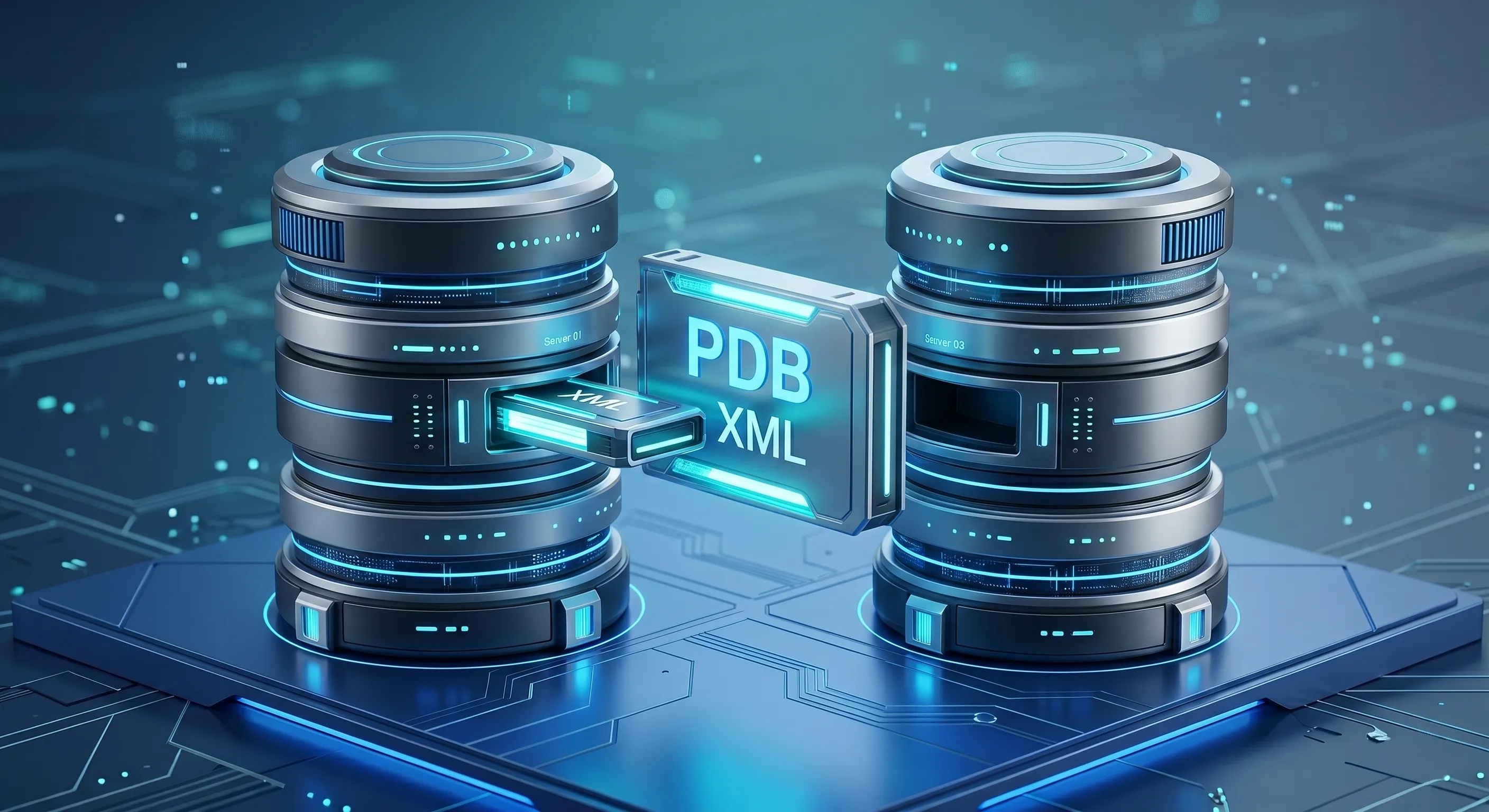
As an Oracle DBA, you often encounter situations where textbook solutions ("just create a DB link and clone it") simply do not work. What can you do if you need to move a PDB into a completely isolated environment, the source database is running in NOARCHIVELOG mode, and there is a strict requirement that the original instance must remain intact?
In today's post, we will walk through a classic "offline" migration scenario step-by-step. Our task is to copy (clone) a database named PDB1 from a CDB1 environment to a CDB2 environment running on a different server.
The Challenges
Network isolation: The two servers cannot communicate with each other over the network, so CREATE DATABASE LINK is not an option.
NoArchivelog: The source database is not in archive mode, meaning a "hot" (online) backup cannot guarantee consistency.
No Unplugging: We cannot permanently unplug the PDB because business operations on the source side must resume immediately after copying.
Windows environment: In this example, we use Windows servers and filesystems, but the procedure works perfectly in Linux environments as well.
Step 0: Prerequisites (Avoiding "Day Zero" Errors)
Before executing a single command, we must verify one critical thing: Compatibility.
Moving a PDB based on physical copying (plug-in) only works smoothly if the following conditions are met:
Architecture: Must be identical (e.g., both are 64-bit Windows). Endianness (byte order) must match.
Version: The major version of the source and target databases (e.g., 19c) must be the same.
Patch Level: Ideally, the Release Update (RU) level should also match.
What happens if they do not match? If the versions differ (e.g., moving from an older RU to a newer one), the database will often open in RESTRICTED mode after plugging it in, requiring you to run the datapatch utility or upgrade scripts. If the OS architecture is completely different, this method will not work; in that case, Data Pump (expdp/impdp) is your best friend.
I. Preparing the Source Server (CDB1)
Since we are in NOARCHIVELOG mode, the datafiles must be inactive and consistent during the file copy process. To achieve this, we will put the PDB into Read Only mode while generating the XML metadata, and then close it for the physical file copy.
Location: Source Server, SQL*Plus (or your favorite tool)
Stop the PDB, then open it in Read Only mode. This ensures a consistent state (checkpoint) and prevents any write operations.
Generate the PDB description XML file. This file contains the PDB's metadata (file locations, GUID, etc.). Important: By using DBMS_PDB.DESCRIBE , we are not unplugging the database; we are merely generating a description of it.
Close the PDB for copying. On Windows, files are locked by the OS as long as the database is open. We must close it to allow copying.
Copy Files (OS Level). Now, copy the entire database directory to your portable storage (F:).
Restart the Source. As soon as the copy is finished, you can bring the source database back online for business.
II. The Transfer
Physically disconnect the F: drive (USB disk, SAN LUN, etc.) and connect it to the target server.
III. Operations on the Target Server (CDB2)
On the target server, the database files will reside on the D:\ drive, not the E:\ drive like on the source. We have to handle this path conversion.
Location: Target Server, SQL*Plus (CDB2)
Check Compatibility. Before attempting to plug in the database, let's ask Oracle if it accepts the XML and the state of the files.
If the output indicates an error, check the details here:
Create the PDB (Cloning). This is where the magic happens. Since the files are currently on the F: drive (the copy), but the XML originally referenced the E: drive, and we want their final destination to be the D: drive, we must use two conversions:
AS CLONE: This tells Oracle that this will be a copy with a new DB ID, not a relocation of the original.
SOURCE_FILE_NAME_CONVERT: Tells Oracle where to look for the files right now (F:\...) instead of the paths listed in the XML (E:\...).
FILE_NAME_CONVERT: Tells Oracle where to permanently copy them from their current location (F:\...) to the final destination (D:\...) using the COPY clause.
Open the PDB. If the CREATE statement was successful, open the database.
Verify the status:
Finally, do not forget to save the state so that PDB1 starts automatically the next time CDB2 restarts:
Summary
Using this method, we successfully cloned a PDB without any network connection, purely through the filesystem. The original source database only required minimal downtime (just for the duration of the file copy), and we avoided performing an irreversible UNPLUG operation on it.
Do You Need Help?
Please check out our Services page to explore how we can support your business, or feel free to reach out to me directly via the Contact page. We are here to help you make the best strategic decisions for your IT infrastructure.


Explore Topics






Newsletter
Never Miss a Crucial Update
Get the latest Oracle and PostgreSQL scripts, security alerts, and DBAInspect news directly to your inbox.
Spotlight

- Our Featured Tool-

Safely audit your Oracle and PostgreSQL environments with our strictly read-only health check tool.

Related Post

on
Jun 4, 2026
Applying an Oracle Release Update (RU) is only half the job. Did you know that new Cost-Based Optimizer (CBO) fixes are disabled by default? Discover how to use the built-in DBMS_OPTIM_BUNDLE package to safely enable execution plan improvements and maximize your database performance.
on
May 28, 2026
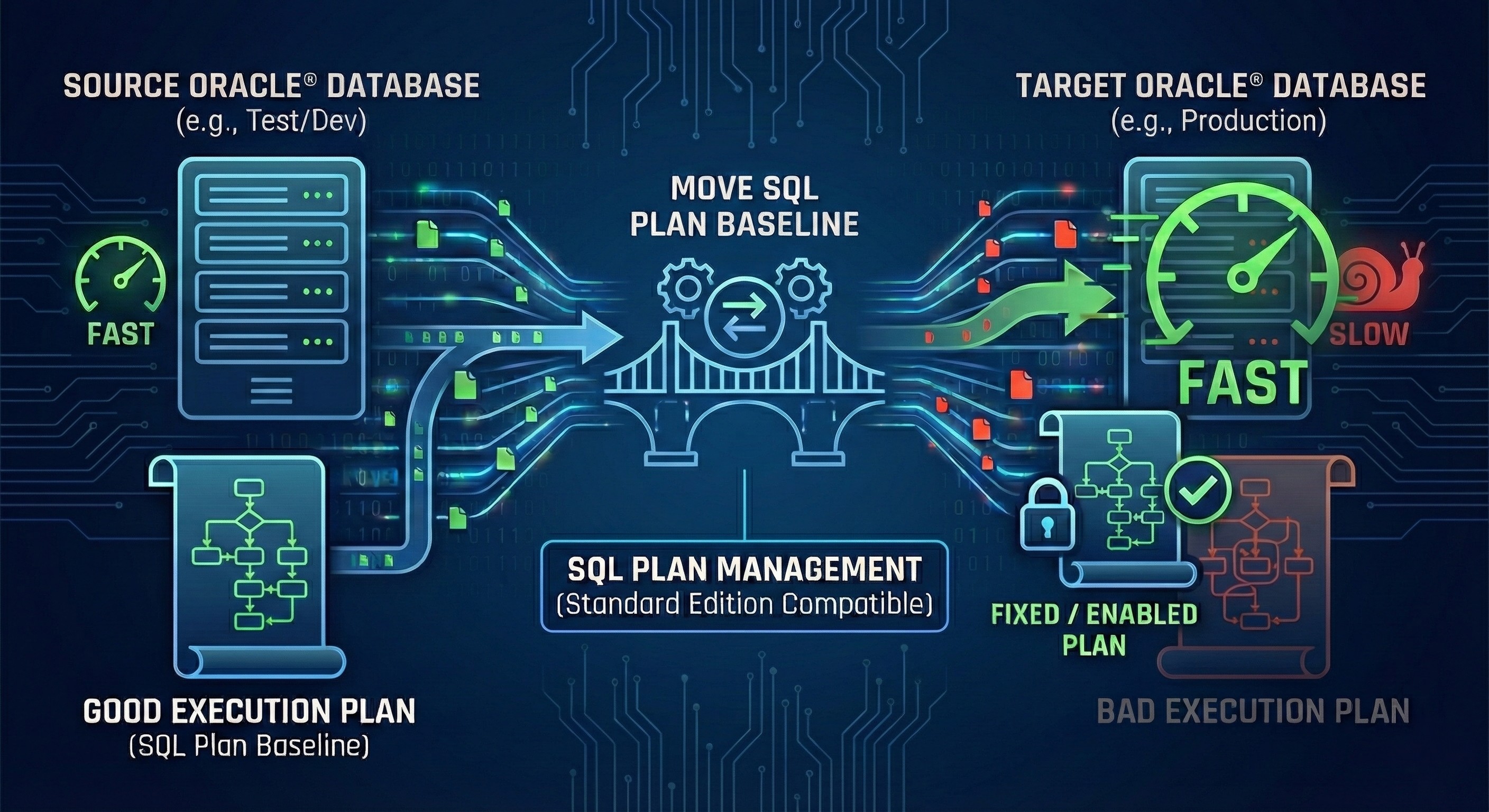
Struggling with queries that run perfectly on test but crawl in production? Discover a proven, step-by-step DBA guide to copy and pin fast SQL Plan Baselines between Oracle databases—even if you are limited to Oracle Standard Edition!